
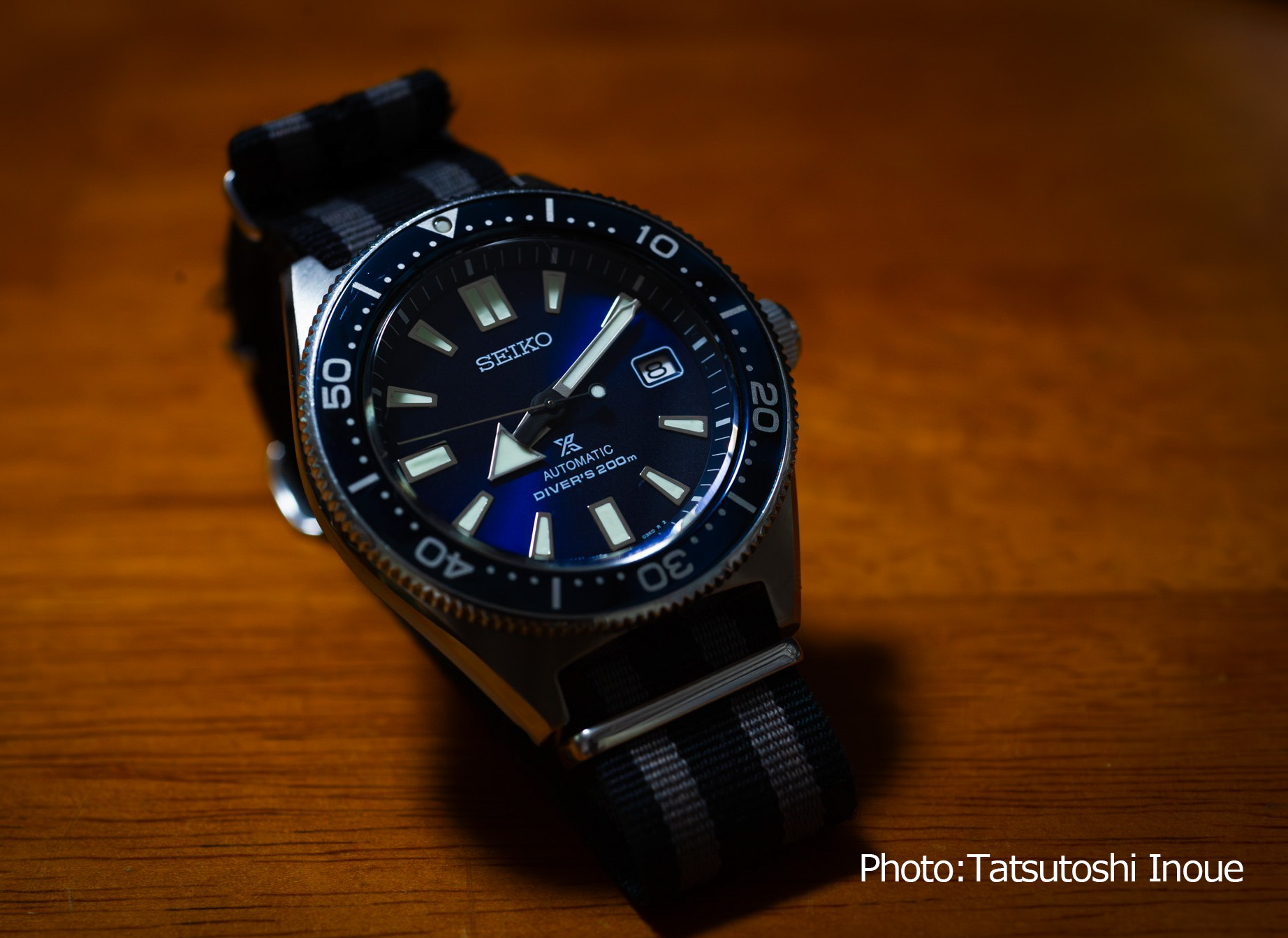
僕は毎朝、腕時計の時刻を合わせます。
機械式時計なので、季節によっても、使い方によっても、少しずつ誤差が変わります。
だから毎朝合わせます。
ただし、正しい時刻には合わせません。
正確に、一分だけ進めます。
ほんの一分です。
遅刻を防ぐため、と言ってしまえばそれまでなのですが、毎朝この作業をすることが、いつの間にか小さな習慣になりました。
今使っているのは、セイコーのメカニカル・ダイバーズウォッチです。
以前は、ソーラー式のアビエーション・クロノグラフを使っていました。
クロノグラフをはじめ機能も多く、気に入っていた時計です。
ただ、クロノグラフの機構があるぶん、ケースにはほんの少し厚みがありました。
わずかな違いなのですが、毎日ワイシャツを着ていると、その数ミリが袖口との相性に響きます。
もう一つ、気になっていたことがありました。
ソーラー時計も、光さえ当てていれば永遠に動くわけではありません。
内部には電気を蓄える部品があり、それにもいずれ寿命が来ます。
そのとき、この時計は直せるのだろうか。
部品の供給が終わってしまえば、それで終わりになってしまわないだろうか。
次に時計を選ぶとき、僕はいくつかの条件を考えました。
堅牢であること。
日常生活には十分な精度を持つこと。
一目で時刻が読み取れること。
そして、できるだけ長い間、修理しながら使い続けられること。
そんなことを考えていた頃、このダイバーズウォッチが発売されました。
ブルーのモデルを見たとき、最初に目に入ったのはスペックではなく、その色でした。
明るい南国の海というより、もう少し深い海。
光が少しずつ届かなくなっていくような、
どこかにクジラでも泳いでいそうな碧さ。
僕には、そう見えました。
以前、小笠原ホエールウォッチング協会に入っていたことがあります。
年末年始に父島へ行ったこともあります。
冬ならクジラに会えるかもしれない。
そう期待していたのですが、そのとき海で出会ったのは、ミナミバンドウの群れでした。
野生のイルカとは、その後も出会っています。
どうも僕は、イルカとは相性がいいようです。
初めて野生のイルカと出会ったとき、なぜか涙が止まらなくなったことがあります。
悲しかったわけではありません。
何かを理解したわけでもない。
ただ、その瞬間、気持ちの奥にあったものが、ふっとほどけたような感覚がありました。
ダイビングをしていて、晴れた日に15メートルほどの深さから水面を見上げると、太陽の光がきらきらと揺れて見えます。
見ているのは海なのか。
空なのか。
境目がわからなくなるような青があります。
僕は、あの青が好きです。
だから仕事に追われているとき、ふと時間を確認するために腕を見る。
そのほんの一瞬だけでも、空や海を思い出せる時計であってほしいと思いました。
今の時計には、PhoenixのG10ストラップを付けています。
これにも、少し古い記憶があります。
もう40年ほど前のことです。
大好きだった父方の祖母が、あと数日の命かもしれないと医師から家族に伝えられていました。
大往生といえる年齢でもあり、家族もある程度は覚悟していました。
その日、僕は運転免許の実技試験を受けに、直接試験場へ行っていました。
教習所には通っていませんでした。
理由は単純です。
時間も費用もかかりすぎる。
直接試験場へ行けば、時間も費用も、僕の感覚では4分の1ほどで済みました。
試験が終わり、結果発表を待っていたときです。
腕時計のステンレス製ブレスレットが、突然切れました。
工業製品なのだから、壊れることはあります。
ステンレス製のブレスレットにも寿命はある。
それでも、その瞬間、嫌な予感がしました。
日本では、靴ひもが切れたり、何かが突然壊れたりすると、「虫の知らせ」という言い方をすることがあります。
もちろん、因果関係などないのだと思います。
それでも、少し時間を置いて親に電話をすると、祖母が息を引き取ったと聞かされました。
その出来事は、今でも強く記憶に残っています。
それ以来、腕時計のバンドを選ぶときには、どこかで「切れにくいこと」を考えるようになりました。
ステンレスなら、最低でもダブルロック。
アウトドアでは、ナイロン製のバンドやG10ストラップを好みます。
今使っているPhoenixのG10は、少し緩めても、すぐ次の穴にピンが入ります。
簡単には外れない。
その感覚も気に入っています。
たぶん僕は、
壊れないものを求めているのではありません。
壊れたときに、大切なものまで一緒に失わない構造を選びたいのだと思います。
祖母や父を見送ったあと、ふと気づいたことがありました。
「この人といえば、これ」
そう思い出せるような、長く身につけていた物が、僕の記憶には意外とありませんでした。
だからといって、高価な物を残したいわけではありません。
たとえば、高価なクロノグラフなら形見としては立派かもしれません。
精度も高い。
価値もある。
でも、受け取った人がその時計を本当に好きでなければ、メンテナンス費用も含めて、使い続けることが負担になるかもしれません。
僕が大切にしていたからといって、子どもたちにも大切にし続けてほしいとは思いません。
それでも、日々使い続けた物には、その人と過ごした時間が少しずつ染み込んでいく。
そんな物が一つくらいあってもいいと思っています。
機械式時計は、放っておけばずっと動き続けるわけではありません。
自動巻きでも、使わなければ止まります。
ときどきゼンマイに力を与え、時刻を合わせる必要があります。
でも、その小さな手間があるからこそ、時計との小さな物語が生まれるのかもしれません。
青い空と海を忘れないこと。
小さな精密機械を身につけていること。
壊れたときに、すべてを失わないこと。
修理しながら、できるだけ長く使うこと。
そして、物の向こう側に、人との記憶があること。
僕にとって、この時計はそういうものの象徴になっています。
時計は、僕が意識していなくても時を刻み続けます。
仕事に追われている日も。
海を思い出している日も。
誰かを失った日も。
何も特別なことがない日も。
明日の朝も、僕はこの青い時計の時刻を合わせるでしょう。
空と海を忘れないために。
そしてまた、
正確に、一分だけ進めて。
English
A Watch One Minute Fast
— On Things We Keep, and the Time They Carry
Every morning, I set the time on my watch.
It is a mechanical watch, so its accuracy shifts slightly with the seasons and with the way I use it.
That is why I reset it every morning.
But I do not set it to the exact time.
I set it exactly one minute fast.
Just one minute.
You could say it is simply to keep myself from being late.
But somewhere along the way, this small act became part of my morning routine.
The watch I wear now is a Seiko mechanical diver’s watch.
Before that, I wore a solar-powered aviation chronograph.
It had a chronograph and several other functions, and I liked it very much.
But the chronograph mechanism made the case just a little thicker.
It was only a few millimeters, but when you wear a dress shirt every day, even those few millimeters can make a difference at the cuff.
There was something else that bothered me.
A solar watch does not run forever simply because it is exposed to light.
Inside it is a component that stores electrical energy, and eventually that component will reach the end of its life.
When that happened, would the watch still be repairable?
If replacement parts were no longer available, would that simply be the end of it?
So when I began thinking about my next watch, I had a few requirements.
It had to be robust.
Accurate enough for everyday life.
Easy to read at a glance.
And, as much as possible, something that could be repaired and kept running for many years.
Around that time, this diver’s watch was released.
When I first saw the blue model, it was not the specifications that caught my attention.
It was the color.
Not the bright blue of a tropical sea.
Something deeper.
A blue that seemed to fade gradually into water where the light no longer quite reaches.
A shade of blue that made me imagine a whale swimming somewhere below.
That was how it looked to me.
I was once a member of the Ogasawara Whale Watching Association.
I also spent a New Year holiday on Chichijima, one of the Ogasawara Islands.
Winter is whale season, so I hoped I might see one.
Instead, what I encountered in the sea was a pod of Indo-Pacific bottlenose dolphins.
I have encountered wild dolphins again since then.
For some reason, dolphins seem to find me.
The first time I encountered wild dolphins, I suddenly found myself unable to stop crying.
I was not sad.
I had not suddenly understood anything.
It simply felt as though something deep inside me had quietly loosened.
When I dive on a clear day and look up from around fifteen meters below the surface, sunlight shimmers and dances above me.
Am I looking at the sea?
Or at the sky?
There is a kind of blue where the boundary seems to disappear.
I love that blue.
So when I am buried in work and glance at my wrist to check the time, I wanted my watch to be something that could remind me, if only for a moment, of the sky and the sea.
The watch I wear now has a Phoenix G10 strap.
There is an older memory behind that choice as well.
It happened about forty years ago.
My paternal grandmother, whom I loved very much, had been ill, and the doctor had told our family that she might have only a few days left.
She had lived to what could reasonably be called a full old age, so the family had, to some extent, prepared ourselves.
That day, I had gone straight to the licensing center to take my practical driving test.
I had not attended a driving school.
The reason was simple.
It cost too much money and took too much time.
By going directly to the testing center, I could reduce both considerably.
After the test, while I was waiting for the results, the stainless-steel bracelet on my watch suddenly broke.
Industrial products fail.
Even a stainless-steel watch bracelet has a finite life.
And yet, the moment it broke, I had a bad feeling.
In Japan, there is an old expression, mushi no shirase—a kind of premonition, sometimes associated with small, unusual events: a shoelace snapping, something unexpectedly breaking.
Of course, I do not think there was any causal connection.
Still, after waiting a little while, I called my parents.
They told me that my grandmother had passed away.
That moment has stayed with me ever since.
From then on, whenever I chose a watch strap or bracelet, somewhere in the back of my mind was the thought that it should be difficult to lose.
If I use a stainless-steel bracelet, I want at least a double-lock clasp.
For outdoor use, I tend to prefer nylon straps or G10 straps.
The Phoenix G10 I use now has another characteristic I like.
Even if I loosen it, the pin tends to catch quickly in the next hole.
It does not come free easily.
I like that feeling of security.
Perhaps I am not looking for something that never breaks.
What I want is a structure that does not make me lose something precious simply because one part has failed.
After my grandmother and my father passed away, I realized something.
There were surprisingly few things I could point to and say,
“This was always his.”
or,
“This was always hers.”
Not many objects they had worn for years had remained strongly attached to my memory of them.
That does not mean I want to leave behind expensive possessions.
A costly chronograph might make an impressive keepsake.
It may be highly accurate.
It may have considerable value.
But if the person who inherits it does not truly like the watch, then maintaining it may become a burden—including the cost of servicing it.
Just because something mattered to me does not mean I want my children to feel obligated to keep valuing it in the same way.
Still, I think there is something meaningful about an object that has been used every day for many years.
Over time, some part of the person seems to soak into it.
I think it is all right to have one or two things like that.
A mechanical watch does not keep running forever if you simply leave it alone.
Even an automatic watch will stop if it is not worn.
From time to time, it needs energy.
And its time needs to be corrected.
Perhaps it is precisely because of those small acts of care that a tiny story begins to form between a person and a watch.
To remember the blue sky and the sea.
To carry a small precision machine on my wrist.
To avoid losing everything when one part fails.
To repair something and keep using it for as long as possible.
And to remember that, behind an object, there are memories of people.
For me, this watch has come to represent all of those things.
The watch keeps marking time whether I am thinking about it or not.
On days when work consumes me.
On days when I remember the sea.
On days when I lose someone.
And on completely ordinary days when nothing in particular happens.
Tomorrow morning, I will probably set the time on this blue watch again.
To remember the sky and the sea.
And once again,
exactly one minute fast.